
See what’s really filling your Mac.
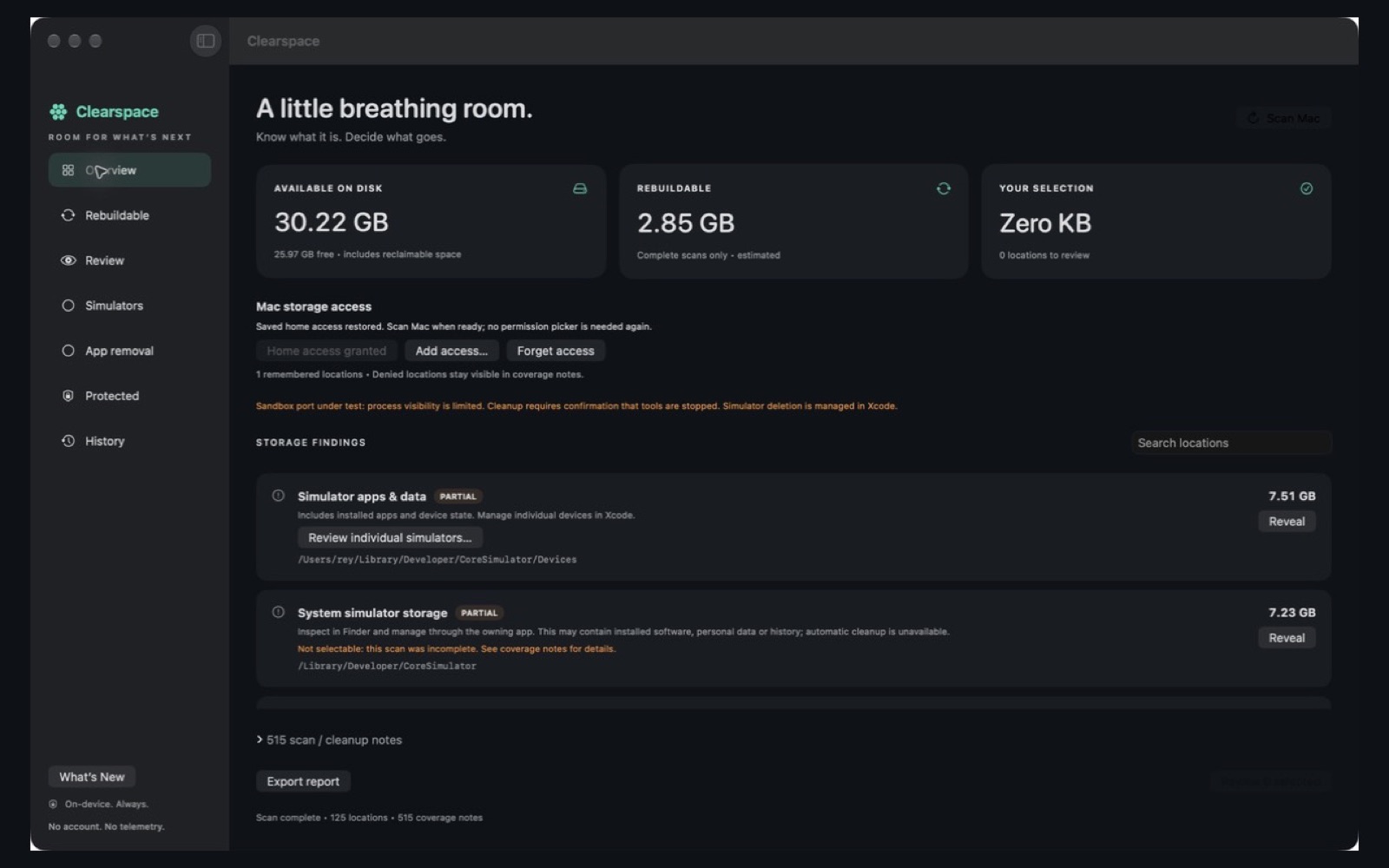
System Settings shows one big “System Data” bar and leaves you guessing. Clearspace lists caches, Xcode builds, simulators, package downloads and app files by name and size. You review each one before anything moves to Trash.
What’s inside “System Data”?
On a Mac, System Settings › General › Storage puts anything it can’t label into System Data (or Developer). That includes caches, logs, simulator devices, build folders, virtual machines and app support files, and it can grow to tens of gigabytes. macOS doesn’t show what’s inside, so it’s hard to tell what’s safe to remove.
Clearspace opens that up. It scans a catalog of known storage locations and shows each one with its path and size. Each finding also says whether it rebuilds on its own, needs your review, or should be left alone.
What Clearspace finds
- Xcode DerivedData~/Library/Developer/Xcode/DerivedData
- iOS Simulators & cachesCoreSimulator devices and shared caches
- Xcode archives & device supportArchives, iOS DeviceSupport
- npm, Yarn & pnpm cachespackage downloads that re-fetch on demand
- Homebrew downloads~/Library/Caches/Homebrew
- pip, CocoaPods & Swift packagesdependency caches
- Go, Gradle, Maven & Cargobuild caches and toolchains
- Playwright & Cypress browserstest runner downloads
- Docker, OrbStack & ColimaVM and container data, inspect-only
- Ollama & Hugging Face modelslocal AI model files
- Browser cachespage caches outside your profile
- Logs, device backups & Trashlogs, diagnostics, iPhone backups
How it works
- Grant access once. Pick your home folder in the standard macOS picker. No Full Disk Access, no admin password.
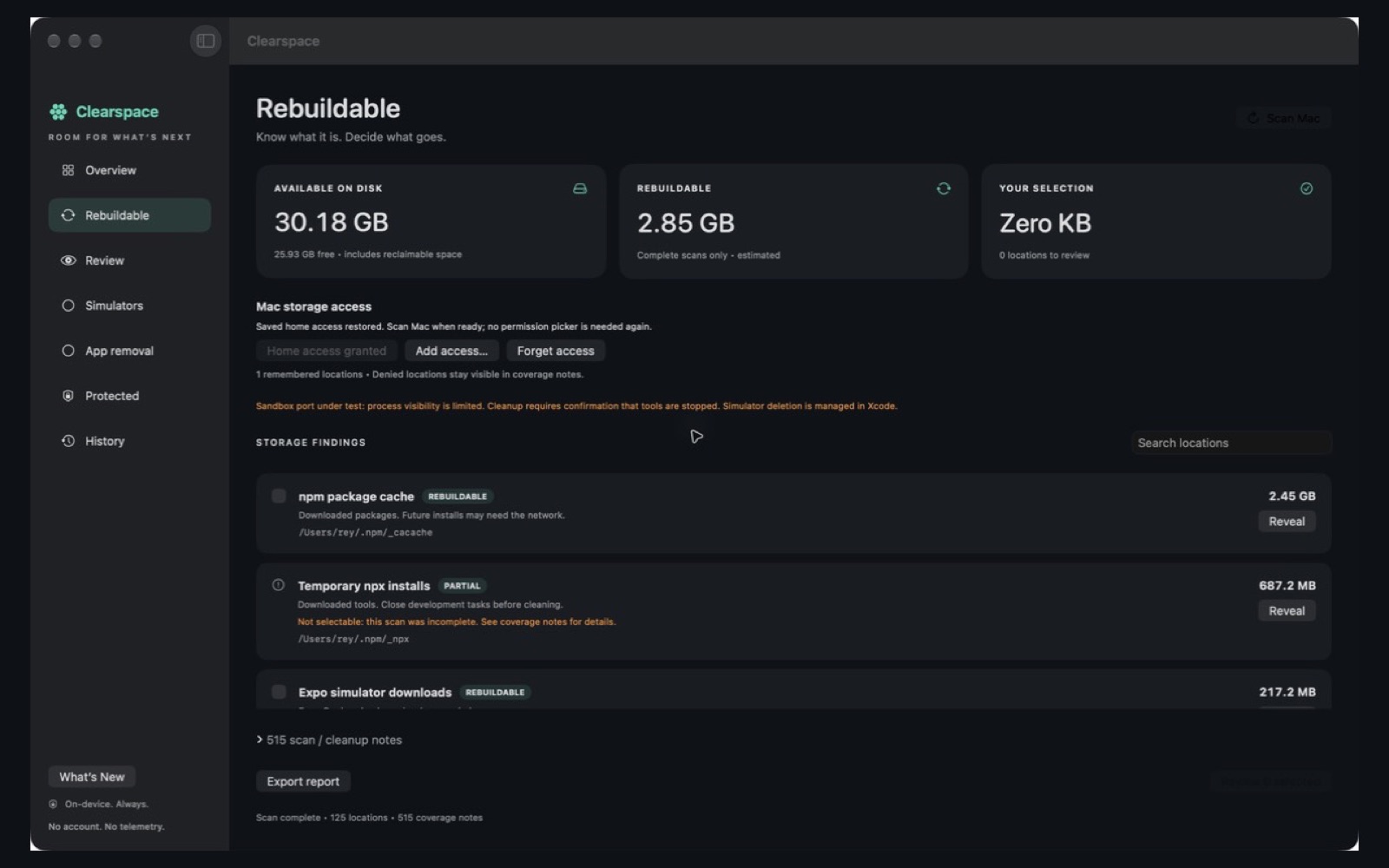
- Scan Mac. Browse Overview, Rebuildable, Review and Protected, or search any name or path.
- Review before cleanup. Nothing starts selected. Check the exact paths, close related apps, then confirm.
- Move to Trash, restore if needed. Cache cleanup is logged in History, so you can put items back while they’re still in Trash.
Also inside
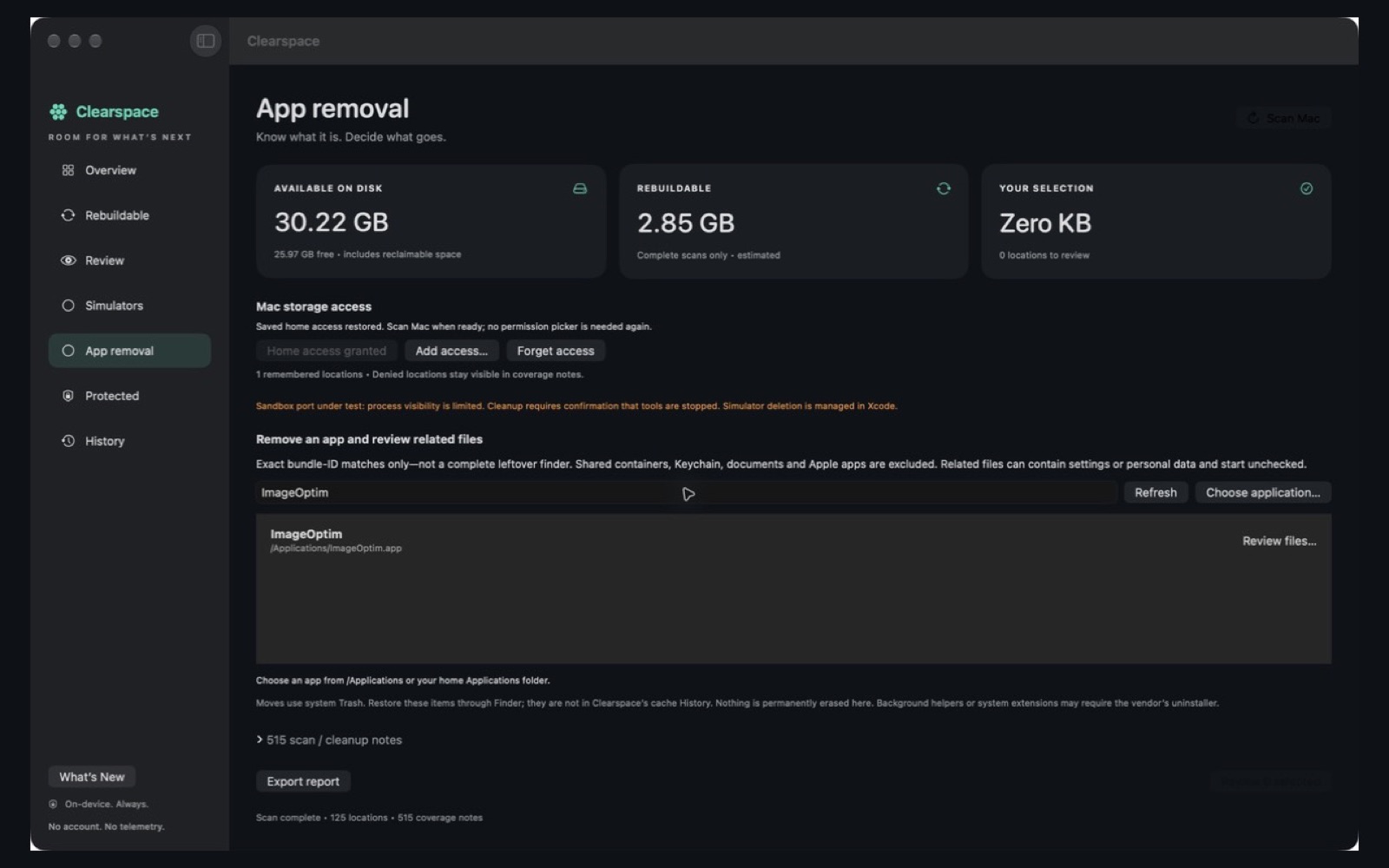
App removal
Pick an app and see the caches, preferences and support files that belong to it before you remove them.
Menu bar
Keep available space in the menu bar and open a compact dashboard whenever you need it.
Simulators
See how much space each iOS simulator uses, then manage devices in Xcode.
Private by default
No account, ads or analytics. Scans and cleanup history stay on your Mac.
Questions
What is System Data on a Mac?
It’s the catch-all category in System Settings › Storage for files macOS doesn’t label elsewhere: caches, logs, developer files, virtual machines and app support data. macOS shows the total but not what’s in it. Clearspace lists many of those locations by name and size.
Is it safe to delete Xcode DerivedData?
Generally yes. It holds build outputs and indexes that Xcode recreates, so your next build is just slower. Quit Xcode first. Clearspace marks it for review and moves it to Trash only after you confirm.
Does Clearspace delete files permanently?
No. Cleanup moves items to Trash, and cache cleanup is recorded in History so you can restore it. Permanent removal of a recorded item needs a separate confirmation.
Does it need Full Disk Access?
No. It’s a sandboxed Mac App Store app. You grant your home folder through the macOS folder picker and can forget that access anytime.
Is it a subscription?
No. It’s a one-time $10 purchase with no account, ads or analytics.
Will it match the System Data number exactly?
No. Clearspace scans a catalog of known locations, not every byte Apple counts. Snapshots, compression and shared storage also change totals. Sizes are estimates, and space is freed once Trash is emptied.